
Important: IPTV is a technology for delivering television through an internet connection. Always use legitimate apps, services, and content sources that respect copyright, licensing rules, and platform terms.
IPTV on iPhone and iPad: Setup, Apps, Travel Tips and Best Practices
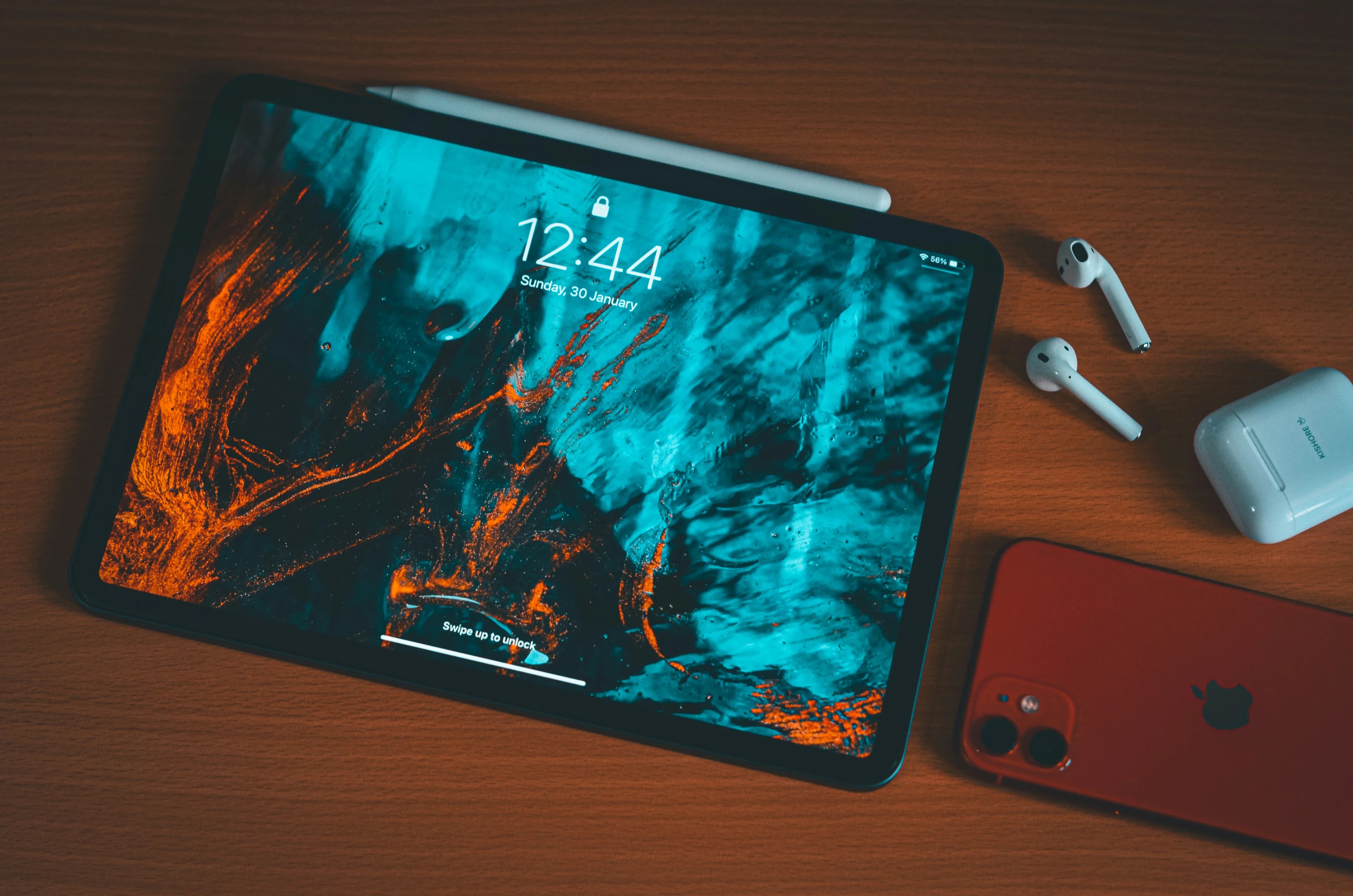
Watching IPTV on iPhone or iPad can be very convenient. Instead of staying tied to the living room TV, users can watch live TV, sports, news, entertainment, or family content from a personal device. For UK viewers who travel, commute, or simply want a second screen at home, iPhone and iPad can be useful IPTV devices.
This guide explains how IPTV works on iOS devices, what to check before setup, how to improve streaming quality, and how to avoid common mobile viewing problems.
IPTV App vs IPTV Service on iOS
As with other devices, an IPTV app is usually just a player. It does not normally include channels by itself. Your IPTV provider supplies login details, playlist URL, or another supported format. The app displays the interface and lets you browse content.
Before installing an app, confirm which login method your service supports. Some apps support M3U playlists, some support username and password, and others may support portal-style access.
Choose a Clean and Trusted App
For iPhone and iPad, choose apps carefully. A good IPTV app should be easy to navigate, stable, updated regularly, and clear about permissions. Avoid apps that look suspicious, show aggressive ads, or make unrealistic promises.
The best app depends on your provider’s format and your personal preference. Look for useful features such as favourites, search, EPG support, picture-in-picture where available, and simple playlist management.
Setup Basics
Once you install a compatible app, open it and add your IPTV details exactly as provided. Check for extra spaces, wrong letters, or incomplete URLs. Mobile keyboards can easily add mistakes, especially with long playlist links.
After login, allow the app time to load channels, logos, and guide data. If nothing appears, check your internet connection and confirm that your subscription details are active.
Wi-Fi vs Mobile Data
Wi-Fi is usually better for IPTV because it is more stable and does not use your mobile data allowance. Mobile data can work well with strong 4G or 5G, but streaming video can consume data quickly, especially in HD.
If you watch while travelling, read our guide on IPTV for Travel and Holidays. It explains hotel Wi-Fi, hotspots, account limits, and device choices.
Battery Life Tips
IPTV can drain battery because video streaming keeps the screen, network, and processor active. Lower brightness when possible, close background apps, and use Wi-Fi instead of mobile data if it is stable. For long viewing sessions, keep a charger or power bank nearby.
If your device gets hot, take a break or reduce stream quality. Heat can affect performance and battery health.
Watching on a Bigger Screen
Some users want to start IPTV on iPhone or iPad and display it on a larger screen. Depending on your app, device, and TV setup, screen sharing or casting may be possible. However, compatibility varies and some content may not display correctly through screen mirroring.
For regular TV viewing, a dedicated device such as Firestick, Android TV, or Smart TV app may be more comfortable. Read How to Set Up IPTV on Firestick if you prefer watching on your main TV.
EPG and Favourites on Mobile
Because phone screens are smaller, organization matters. Use favourites to avoid endless scrolling. If the app supports EPG, test it and make sure the schedule is readable on your device.
A clean favourites list is especially useful for sports, news, and entertainment channels you watch often.
Troubleshooting iPhone and iPad IPTV
If IPTV buffers on iPhone or iPad, test Wi-Fi and mobile data separately. If mobile data works but Wi-Fi does not, your home network may be the issue. If both fail, check the app, login details, or provider status.
If the app crashes, update it, restart your device, and check available storage. If EPG is missing, refresh the guide or reload the playlist. For a deeper checklist, read our IPTV Troubleshooting Guide.
Privacy and Security
Do not share your login details. Avoid installing unknown profiles or apps from untrusted sources. Keep iOS updated and use apps from trusted locations. If you use public Wi-Fi, be careful with account information.
A simple, secure setup is better than a complicated one with unknown tools.
Want a cleaner IPTV UK setup? Visit our Pricing page to compare plans and choose an option that fits your device, picture quality, and viewing habits.
Final Thoughts
iPhone and iPad can be excellent IPTV devices for personal viewing, travel, and second-screen use. The best experience comes from choosing a trusted app, using stable Wi-Fi, organizing favourites, and understanding data and battery usage.
For full home viewing, combine mobile access with a reliable TV device such as Firestick, Smart TV, or Android TV.
Frequently Asked Questions
Can I watch IPTV on iPhone?
Yes, if you use a compatible IPTV player app and valid service details.
Does IPTV use a lot of mobile data?
Yes. HD and long viewing sessions can consume significant data, so Wi-Fi is usually better.
Can I watch IPTV on iPad?
Yes. iPad is often better than iPhone for IPTV because the larger screen improves navigation and viewing.
Why is IPTV buffering on my phone?
It may be caused by weak Wi-Fi, unstable mobile data, app issues, or provider-side problems.
What should I read next?
Read IPTV for Travel and Holidays, What Internet Speed Do You Need for IPTV?, and IPTV Troubleshooting Guide.