
Important: IPTV simply means television delivered over an internet connection. Always choose services and apps that respect copyright, licensing rules, and the terms of the content providers you use.
How to Set Up IPTV on Firestick in Minutes
Amazon Fire TV Stick is one of the most popular streaming devices for UK households because it is affordable, compact, and simple to use. It can turn almost any modern television into a flexible streaming hub. When paired with a legitimate IPTV service and a compatible player app, Firestick can help users organize live TV, movies, entertainment, sports channels, and on-demand content in one familiar interface.
This guide explains the setup process in a beginner-friendly way. It does not focus on one single app or one single provider, because IPTV setups can vary depending on the service you choose. Instead, it gives you a clear checklist, the main steps, and practical optimization tips so your Firestick IPTV experience is smoother from the start.
What IPTV Means on Firestick
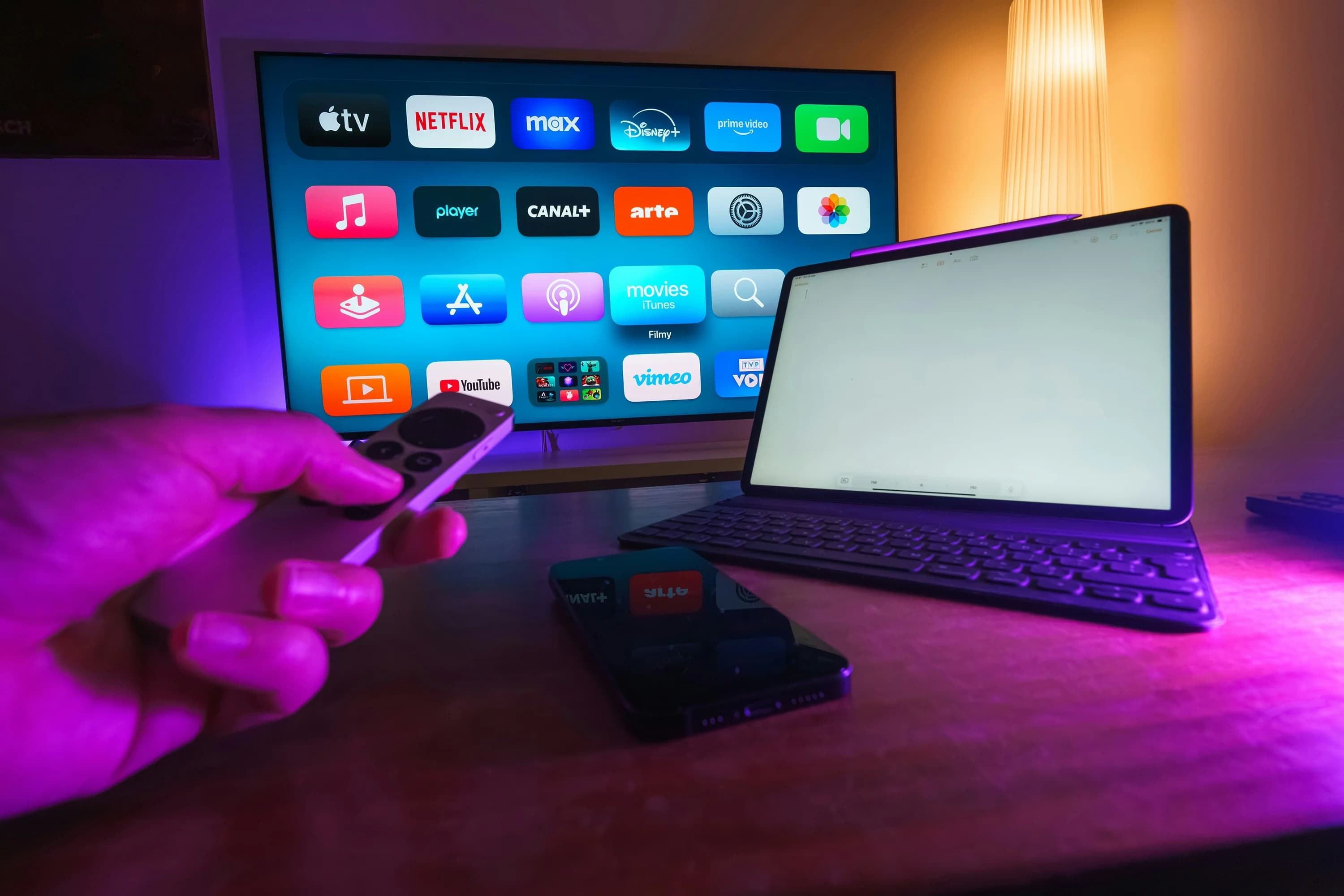
IPTV stands for Internet Protocol Television. Instead of receiving television through cable or satellite, IPTV delivers channels and video streams through an internet connection. On Firestick, IPTV usually works through a player app. The app is the interface where you load your subscription details, browse categories, open live TV channels, use the electronic programme guide, and manage favourites.
A good IPTV setup normally depends on three things: a stable Firestick, a reliable internet connection, and a service that provides legitimate access to the content you want to watch. If any of those three parts are weak, the experience can feel slow, confusing, or unstable.
What You Need Before You Start
Before opening your IPTV player, prepare the basics. You will need an Amazon Fire TV Stick, a TV with an HDMI port, your Wi-Fi password, and the account details supplied by your IPTV provider. Many services provide either a username and password, an M3U playlist URL, or Xtream Codes-style login details. Keep those details private and do not share them publicly.
You should also make sure your Firestick has enough storage available. If the device is full of unused apps, performance may suffer. Go to the Firestick settings and remove anything you no longer use. A clean device is easier to manage and often performs better.
Step 1: Update Your Firestick
Start by checking for system updates. On Fire TV, open Settings, go to My Fire TV, then About, and check for updates. Updating is important because older versions can create app compatibility problems, random crashes, or slower navigation.
After updating, restart the Firestick. This clears temporary memory and gives you a cleaner start before installing or opening an IPTV player.
Step 2: Install a Compatible IPTV Player
An IPTV player is not the same as an IPTV service. The player is the app that displays your channels and content; the service is the provider that gives you access details. Choose a player that supports your provider’s format and has a clean interface, EPG support, favourites, search, and stable playback.
When installing any app, use safe and trusted sources. Avoid unknown downloads that make unrealistic promises or ask for unnecessary permissions. A clean, well-maintained player is better for security, performance, and long-term reliability.
Step 3: Add Your IPTV Details
Once your player is installed, open it and choose the login method supported by your provider. You may see options such as M3U playlist, username and password, or portal URL. Enter the details exactly as provided. Even a small typo can stop the channel list from loading.
After login, the player may take a few minutes to load categories, channels, logos, and the programme guide. This is normal, especially if your package contains many channels or a large on-demand library.
Step 4: Organize Your Channels
A common mistake is leaving everything unorganized. If you have many categories, finding what you want can take too long. Use favourites for the channels you watch most often. Create a small group for sports, news, movies, entertainment, kids, documentaries, or regional channels.
If your player supports search, test it early. Search is especially useful for sports events, movie channels, and international channels. A clean channel organization makes IPTV feel much more premium and easier for the whole family to use.
Step 5: Improve Streaming Quality
If channels buffer or take too long to load, start with your connection. A 5 GHz Wi-Fi network is often better than 2.4 GHz if your router is close enough. If possible, use an Ethernet adapter for a more stable connection. Restarting the router can also help when the connection feels inconsistent.
For HD and 4K IPTV, speed matters, but stability matters even more. A connection that jumps up and down can cause more buffering than a slightly slower but stable connection. If you often watch live sport, stability is especially important because live events are less forgiving than on-demand content.
Firestick Settings That Can Help
You can improve the experience by keeping your Firestick simple. Disable apps that constantly run in the background. Avoid filling storage with games or unused services. Keep the device cool and avoid hiding it behind a hot TV panel with poor airflow.
It also helps to clear app cache from time to time. Do not clear app data unless you are ready to log in again, because clearing data can remove saved settings and account details.
Best IPTV Features to Look For
When choosing an IPTV UK service for Firestick, look for more than a long channel list. Useful features include a stable EPG, fast zapping between channels, HD and 4K options, catch-up where available, multi-device support, and responsive support.
If sports are important to you, read our guide on Best IPTV UK for Sports. If picture quality matters most, check our Complete Guide to 4K IPTV.
Common Firestick IPTV Problems
The most common problems are buffering, missing EPG data, app crashes, audio delay, and channels not loading. Many of these are caused by weak Wi-Fi, old app versions, incorrect login details, or overloaded device storage. Start with simple fixes: restart the device, check internet speed, update the app, and confirm your subscription details.
For a deeper checklist, read our IPTV Troubleshooting Guide.
Ready to compare plans? Explore our IPTV UK pricing to find a package built for live TV, sports, movies, and everyday entertainment.
Final Thoughts
Firestick is one of the easiest devices for IPTV because it is simple, affordable, and flexible. The best results come from combining a clean setup, a reliable IPTV UK service, a stable internet connection, and a player app that is easy to navigate.
Do not rush the setup. Take time to organize favourites, test your connection, and adjust settings. Once everything is configured properly, Firestick can deliver a smooth IPTV experience for live TV, sports, movies, and everyday entertainment.
Frequently Asked Questions
Is Firestick good for IPTV?
Yes. Firestick is popular for IPTV because it is affordable, easy to use, and compatible with many streaming apps.
Why does IPTV buffer on Firestick?
Buffering can happen because of weak Wi-Fi, unstable internet, overloaded apps, old software, or provider-side issues.
Can Firestick stream 4K IPTV?
Some Firestick models support 4K. You also need a 4K TV, a stable fast connection, and content available in 4K.
Should I use Wi-Fi or Ethernet?
Ethernet is usually more stable. If you use Wi-Fi, 5 GHz is often better when the router is close enough.
What should I read next?
Start with Best IPTV UK for Sports, The Complete Guide to 4K IPTV, and IPTV Troubleshooting Guide.